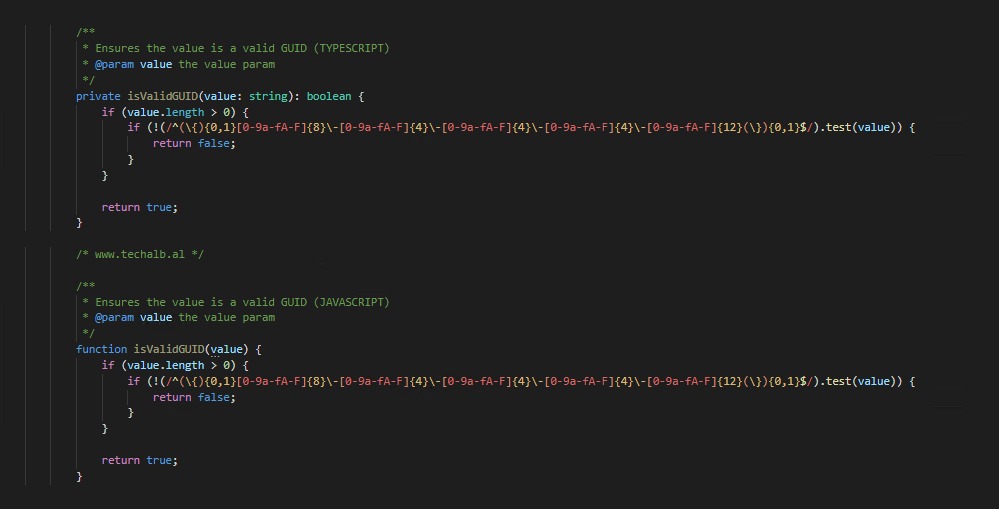
How to check if a GUID value is valid. (Typescript & Javascript)
Here you can see the function on how to check if a GUID value is valid using Javascript and Typescript.
Javascript & Typescript
@techalb

Here you can see the function on how to check if a GUID value is valid using Javascript and Typescript.
@techalb

Here you can see the function on how to create a random GUID using Javascript and Typescript.
Stackoverflow issue: http://stackoverflow.com/questions/105034/create-guid-uuid-in-javascript
@techalb
Ci capita di credere che hai un problema con un’unità USB nel momento in cui hai dovuto trasferire i dati o ottenere dati precedentemente trasmessi, come la creazione di un collegamento alla tua USB e il momento in cui fai clic per apparire un messaggio di errore.
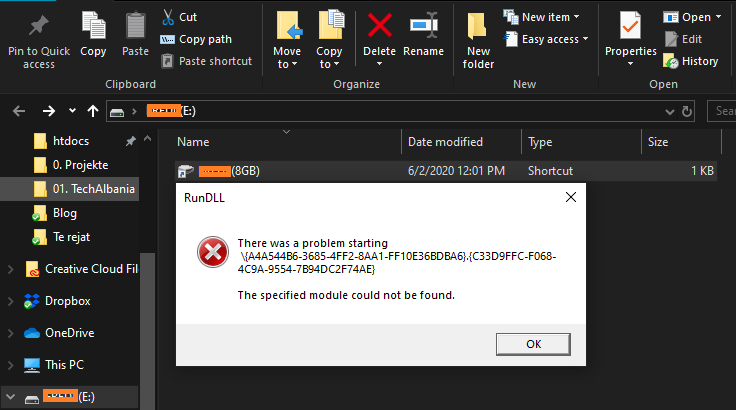
Qualcosa del genere con l’immagine qui sotto:
There was a problem starting <xxxxxx-xxxxx-xxxxxx…>. The specified module could not be found.
Sappiamo che molti di voi non sono stati o non sono a conoscenza di una soluzione a questo problema, ma credetemi è più semplice di quanto possiate immaginare.

Speriamo che queste informazioni ti possano aiutare in futuro.
@techalb team
We happen to believe that you have a problem with a USB drive the moment you had to transfer the data or get previously transmitted data, such as creating a shortcut to your USB and the moment you click it to appear an error message.
Something like this with the image below:
There was a problem starting <xxxxxx-xxxxx-xxxxxx…>. The specified module could not be found.
We know that many of you have not been or are not aware of a solution to this problem, but believe me it is simpler than you can imagine.
We hope this information helps you in the future.
@techalb team
Ju ka ndodhur besojme qe te keni nje problem me nje USB drive ne momentin qe ju duhej te transferonit te dhenat ose te merrnit te dhena te transmetuara me pare, si per shembull te krijohet nje shortcut i USB tuaj dhe ne momentin qe klikoni te ju shfaqet nje mesazh error.
Dicka e tille me imazhin me posht:
There was a problem starting <xxxxxx-xxxxx-xxxxxx…>. The specified module could not be found.
E dime qe shume nga ju nuk keni qene ose nuk jeni ne dijeni te nje zgjidhje per kete problem, por besoni eshte me e thjesht sec mund ta imagjinoni.
Shpresojme qe ky informacion te ju ndihmoje sado pak ne te ardhmen.
@techalb team